In the field of electronic hardware engineering, selecting the right Electronic Design Automation (EDA) software is a critical first step. Among the top-tier tools available today, KiCad has emerged as an industry-standard, open-source suite trusted by professionals globally. Engineers and developers frequently ask us how to effectively transition their circuit concepts into physical reality. Learning how to design a PCB board in KiCad requires a systematic approach, encompassing schematic capture, component footprint assignment, strict layout routing, and precise manufacturing file generation.
As the author of this technical guide, China 365PCB is a fully self-operated, full-industry-chain manufacturing group. We manage everything from PCB fabrication and SMT assembly to online electronic component sourcing, CNC machining, cable harness assembly, and complete OEM/ODM solutions. With 15+ years of experience, 365PCB operates over 100,000㎡ of production area. All facilities are self-owned and self-managed, ensuring total quality control, full process traceability, and unmatched production flexibility. From our experience processing thousands of engineering files daily, we know exactly what it takes to design a PCB board in KiCad that seamlessly transitions into mass production. In this authoritative guide, we will walk you through the professional workflow required to design a PCB board in KiCad flawlessly.
1. Why Choose KiCad for Your Electronic Designs?
Before diving into the mechanics of how to design a PCB board in KiCad, it is important to understand why this software suite is highly recommended by manufacturing experts. KiCad is not only free and open-source, but it also imposes no artificial limits on board size, layer count, or pin count. This makes it exceptionally powerful for complex industrial applications.
From our experience reviewing client files, engineers who design a PCB board in KiCad for specialized sectors—such as Medical PCB and Automotive PCB projects—benefit from its robust 3D viewing capabilities and integrated SPICE simulation. When you design a PCB board in KiCad, you are utilizing a tool that scales from simple two-layer prototypes to advanced multi-layer, high-speed digital boards.
2. Setting Up Your KiCad Project Environment
The first practical step to design a PCB board in KiCad is proper project management. Launch the KiCad project manager and create a new project. This automatically generates a schematic file (.kicad_sch) and a PCB layout file (.kicad_pcb). We recommend keeping all project-specific libraries, 3D models, and datasheets organized within this single project directory to prevent missing links when archiving or sharing your project.
At this stage, verify your grid settings. Working on a metric or imperial grid consistently throughout your project prevents alignment issues later. For most modern Surface Mount Technology (SMT) designs, a metric grid is preferred. Establishing a clean workspace is foundational when you design a PCB board in KiCad.
3. Drafting the Schematic Diagram (Eeschema)
The logical blueprint of your project is created in the Schematic Editor. To design a PCB board in KiCad successfully, your schematic must be logically flawless. Begin by placing symbols from the extensive KiCad standard libraries. If you are integrating proprietary ICs, you may need to create custom symbols. We recommend using hierarchical sheets if your design is complex; this keeps the schematic readable and organized.
Wire the components using the routing tool, ensuring that all junctions are properly connected. Once the logical connections are established, annotate the schematic to assign unique designators (e.g., R1, C1, U1) to every component. Finally, run the Electrical Rules Checker (ERC). The ERC will flag unconnected pins, power conflicts, and missing grounds. Resolving ERC warnings early is crucial; ignoring them guarantees failure when you proceed to design a PCB board in KiCad.
4. Assigning Footprints to Schematic Symbols
A schematic symbol only represents logical function; it does not define physical size. The bridge between logic and physical layout is footprint assignment. To design a PCB board in KiCad accurately, open the Assign Footprints tool. Here, you will map each schematic symbol to a physical footprint (e.g., mapping a generic resistor symbol to an 0603 imperial SMD footprint).
From our experience at China 365PCB, incorrect footprint assignment is the leading cause of assembly delays. Always verify component pitch and pad dimensions against the manufacturer datasheet. Ensuring footprint accuracy drastically improves the pass rate when your boards undergo our comprehensive PCB Actual Board Area (AOI) inspections during assembly.
5. How to Design a PCB Board in KiCad (Pcbnew)
.jpg "How to Design a PCB Board in KiCad (Pcbnew)")
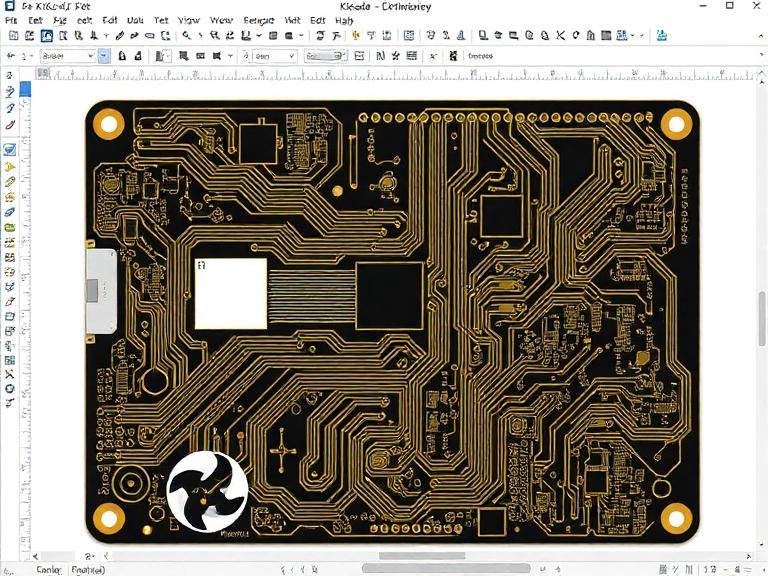
This phase is where the physical engineering occurs. Open the PCB Editor and update the PCB with changes made to the schematic. This action imports all your footprints and logical connections, known as a "rat's nest." To properly design a PCB board in KiCad, follow this strict sequence:
Define the Board Outline: Select the Edge.Cuts layer and draw the physical boundary of your board. Ensure it is a closed loop.
Component Placement: Placement is 80 percent of the work when you design a PCB board in KiCad. Group logical sub-circuits together. Place critical components like microcontrollers, connectors, and power regulators first. Keep decoupling capacitors as close to IC power pins as physically possible.
Layer Setup: Determine your layer stackup. For a complex Consumer Electronics PCB, a 4-layer or 6-layer stackup with dedicated ground and power planes is highly recommended for signal integrity and EMI reduction.
Routing Traces: Begin routing your tracks. Start with critical high-speed signals and differential pairs. Use thicker traces for power and ground routing to handle current loads without excessive thermal rise. When you design a PCB board in KiCad, utilize the interactive router to seamlessly push and shove traces.
Copper Pours: Add copper zones, typically connected to Ground (GND), on the top and bottom layers to provide a low-impedance return path for signals.
6. Executing the Design Rule Check (DRC)
You cannot claim to effectively design a PCB board in KiCad without passing the Design Rule Check (DRC). The DRC verifies that your physical layout adheres to the manufacturing constraints you specified, such as minimum trace width, minimum clearance between copper elements, and annular ring sizes for vias.
We recommend setting your KiCad DRC rules to match the capabilities of your chosen manufacturer. At China 365PCB, our advanced facilities handle ultra-fine pitch and high-density interconnects (HDI). Passing the DRC ensures your board will pass our rigorous PCB Electrical Testing Service without shorts or opens.
7. Generating Manufacturing Files (Gerbers and Drill Data)
The final step when you design a PCB board in KiCad is exporting the data for fabrication. Navigate to File > Fabrication Outputs > Gerbers. You must plot the copper layers, silkscreen, solder mask, and edge cuts. Ensure you select the correct coordinate format.
Next, generate the Excellon drill files. These files instruct the CNC machines where to drill vias and through-holes. From our experience, we recommend generating both Plated Through Hole (PTH) and Non-Plated Through Hole (NPTH) files clearly. Accurate generation of these files is vital for advanced verification processes, such as our PCB X-Ray Inspection Service, which checks the integrity of hidden via structures and BGA solder joints.
8. Integrating Your Design with China 365PCB Manufacturing
Once you design a PCB board in KiCad and export your manufacturing files, selecting a reliable fabrication partner is paramount. With a one-stop turnkey service from design to delivery, we guarantee no delay, no excuses — truly realizing 365 days of fast manufacturing for global customers.
Our Commitment: At 365PCB, we believe true manufacturing excellence lies in Speed, Precision, and Responsibility. We never outsource, never compromise. From PCB to OEM integration, every board, every circuit, every connection is made within our own facilities — ensuring you always get faster delivery, higher quality, and absolute reliability. Whether you require a prototype run or mass production of a complex system, our PCB Functional Testing Service guarantees that the board you designed in KiCad performs exactly as intended in the real world.
9. Summary Table: KiCad Design Workflow
To ensure you follow the correct protocol when you design a PCB board in KiCad, review this summary workflow table:
| Design Phase | KiCad Tool | Expert Recommendation / Best Practice |
|---|
| Schematic Capture | Eeschema | Use hierarchical sheets for complex designs; run ERC to catch logical errors early. |
| Footprint Assignment | Assign Footprints | Double-check pad dimensions against manufacturer datasheets to prevent SMT assembly failures. |
| Board Layout | Pcbnew | Place critical ICs and decoupling capacitors first. Define layer stackup before routing. |
| Design Verification | DRC Tool | Configure DRC settings to match China 365PCB manufacturing capabilities (e.g., min trace/space). |
| Export Fabrication | Plot / Drill Generator | Export standard RS-274X Gerbers and Excellon drill files. Verify outputs using the GerbView tool. |
10. Frequently Asked Questions (FAQs)
Is KiCad suitable for professional and commercial PCB design?
Absolutely. From our experience, we see a massive volume of commercial files generated by KiCad. It is fully capable of handling high-speed routing, differential pairs, and multi-layer stackups required for professional products.
What file formats does China 365PCB accept from KiCad?
When you design a PCB board in KiCad, you should export your layout as standard RS-274X Gerber files and Excellon drill files. We also accept BOM (Bill of Materials) and CPL (Component Placement List) files for SMT assembly.
How do I avoid DRC errors regarding copper clearance?
Before routing, open the Board Setup menu in Pcbnew and input the minimum clearance, track width, and via sizes specified by your manufacturer. This proactive setup ensures the interactive router respects those boundaries automatically.
Can I view my KiCad design in 3D before ordering?
Yes. We highly recommend using KiCad's integrated 3D viewer (Alt+3 in Pcbnew) to visually inspect your board. This helps identify mechanical collisions between tall components and ensures connectors are properly oriented before sending files to fabrication.
11. Industry References
To further enhance your understanding of electronic design automation and manufacturing standards, we recommend consulting the following authoritative resources:
KiCad EDA Official Documentation - The official source for software updates, plugin management, and community-driven design tutorials.
IPC International - The global trade association for the electronics industry, providing standardized guidelines for PCB design, material selection, and acceptability (e.g., IPC-2221, IPC-A-600).
IEEE Standards Association - Authoritative protocols regarding electrical engineering specifications and signal integrity guidelines.
 English